
Broadcast Monitor for Windows · Live video and audio monitoring
When the show is live, you need more than a picture that looks good on one screen. Broadcast Monitor puts your video alongside tools that reveal exposure, color, and audio levels, helping you make confident adjustments before a small problem becomes part of the show.
A monitor shows you the image. A scope helps you understand why it looks the way it does. Is that face too bright? Is one camera warmer than the others? Are the highlights losing detail? Is the audio getting dangerously close to clipping?
Broadcast Monitor brings these questions into one flexible workspace. Keep a picture view beside a waveform, compare color on a vectorscope, or put audio meters where you can see them while watching the program feed. Available tools depend on your edition.
Start with the picture you already understand. Add false color to make brightness easier to judge. Then add a waveform to see where the brightest and darkest parts of the image fall.
You can learn one tool at a time and immediately apply it to the next camera adjustment. Our practical guide explains what each scope tells you and when to use it.
Click a screenshot to expand it. These workspaces use sample video playback and include Professional features. Compare the tools available in each edition.
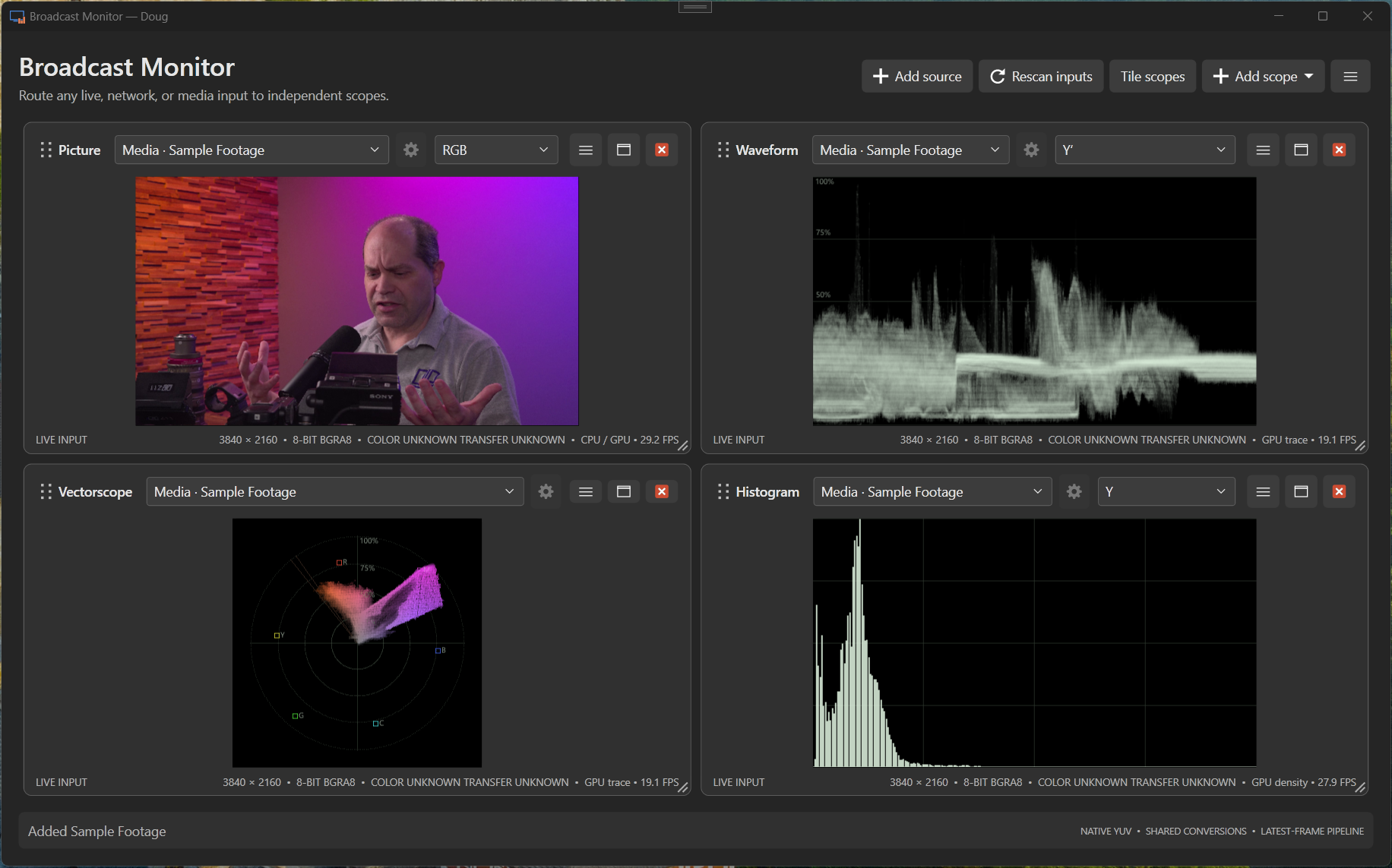
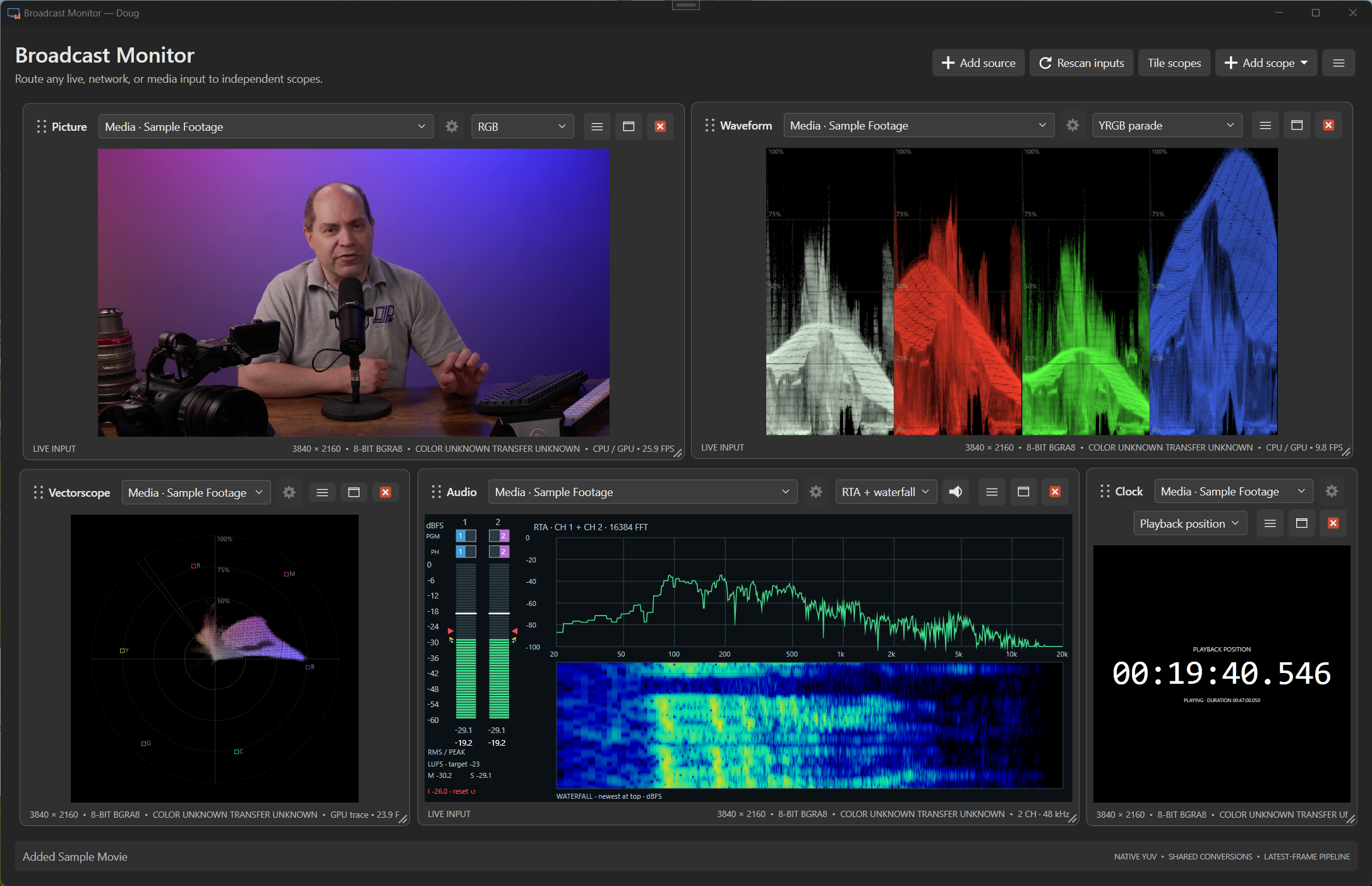
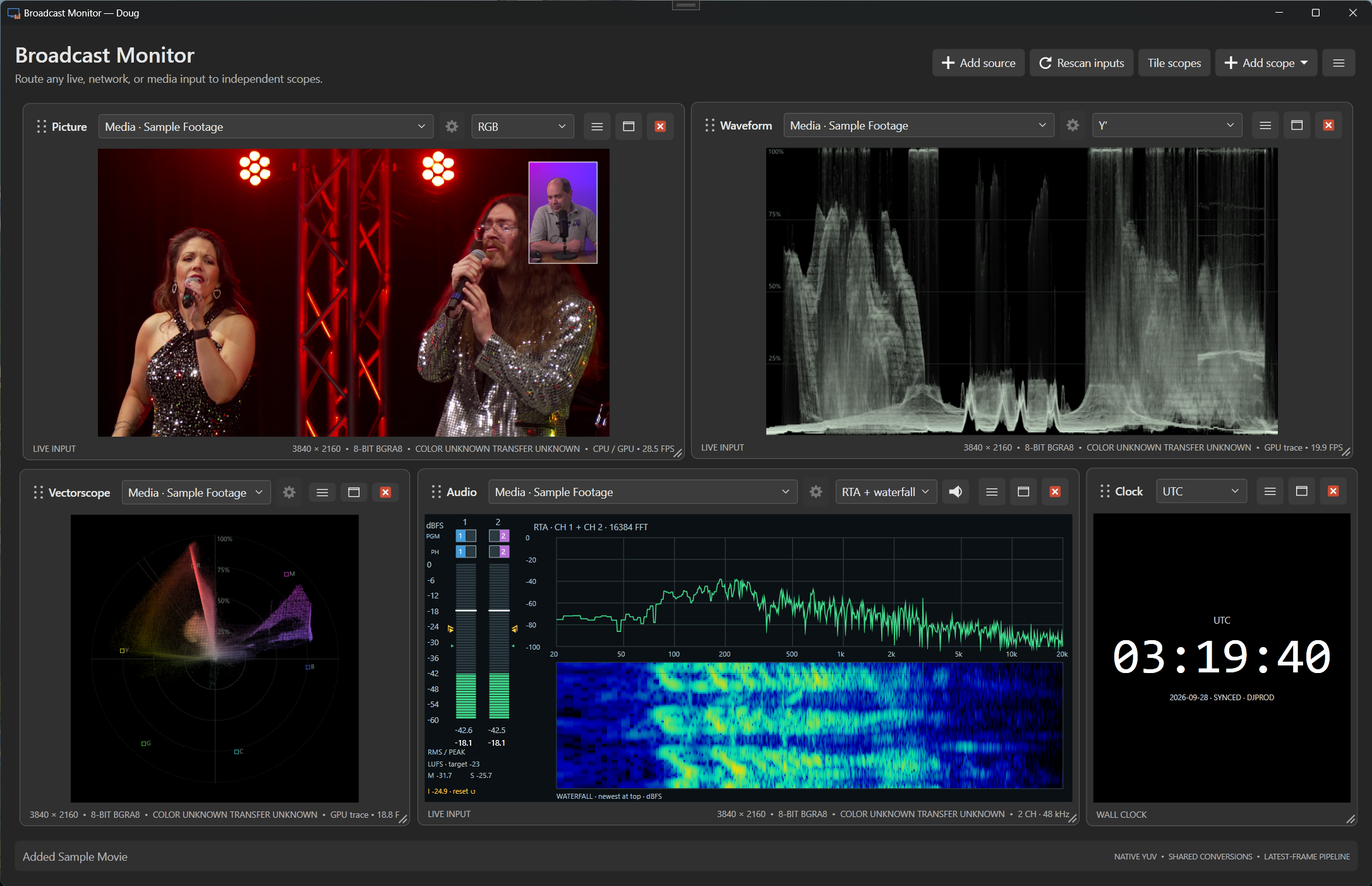
Different cameras, changing lighting, bright projection screens, and unfamiliar venues all make consistency harder. Put useful measurements beside your creative judgment.
Compare brightness and color as you adjust your cameras. Waveforms and parade displays help you spot exposure differences and channel imbalances that can make a cut feel jarring.
A white shirt, a spotlight, or a bright slide can push part of a picture too far. Zebras, false color, and a waveform help you identify the affected areas and judge an adjustment.
Watch audio levels and stereo phase while the picture stays in view. Express adds level and phase monitoring; Professional expands the audio toolset with real-time spectrum analysis.
Give each view its own source and purpose. Inspect one input with several different tools, or arrange views around the signals you need to watch. Keep the information for your role in front of you.
Save window layouts, input routes, scope types, and scope settings as a workspace. Build a configuration for rehearsal, another for the show, and a startup workspace for the monitoring arrangement you use most.
The generated color-bars source lets you explore the application without capture hardware. Set up your views, learn how the displays relate to one another, and prepare your workspace before connecting live signals.
For houses of worship, help keep the lectern, stage, and audience cameras consistent as lighting changes. For corporate events, watch the balance between presenters and bright presentation screens. For performances and streamed productions, check exposure and color without letting a dramatic lighting look become an accidental technical problem.
Scopes do not decide what your show should look like. They give you a clearer basis for deciding whether the signal matches your intent.
Add the full scope toolset, expanded audio analysis, video-file playback, and hardware output. Review playback material with your monitoring tools and bring the monitoring layout into a supported video-output workflow.
Send a composed monitoring view through compatible DeckLink or UltraStudio hardware, or share it as an NDI source over your network. NDI output requires the optional NDI Runtime. Available output formats depend on your device and configuration.
Broadcast Monitor runs on Windows x64. Supported Blackmagic Design DeckLink and UltraStudio devices bring live video and embedded audio into the workspace, using Blackmagic Desktop Video 14.4 or newer.
Camera, network, and NDI inputs extend the available source options. Device support, formats, drivers, and any required runtimes depend on the input you choose. Processing capacity depends on your computer, source formats, and the views you use.
Free gives you picture monitoring, RGB channels, false color, high zebras, and a clock. Express adds the everyday measurement tools that make exposure, color, and audio easier to evaluate. Professional expands the tools and adds playback and hardware output.
Choose the edition for the work you do today. Learn which tools answer your production questions.
Production work moves between the whole show and the smallest detail. Focus assistance, flexible audio listening, and independent playback controls help you investigate without rebuilding your workspace.
Express and Professional add adjustable detail enhancement to the RGB picture view, including grayscale. Boost fine edges to make focus easier to assess, and raise the threshold to reduce the enhancement of low-level noise.
The adjustment affects the displayed picture, leaving source samples and measurement scopes unchanged. A composed output that includes this picture pane also includes its enhancement.
Maximize a pane for a closer look, then return to your layout. When program output is stopped, hidden scope displays suspend their analysis and rendering while source connections and file playback stay in place. Enabled audio listening continues.
Restore the layout to resume current measurements. When program output is running, the other panes keep rendering for that output.
Professional gives each local video file its own playback controls. Play, pause, stop, seek to a moment, or let the clip loop while several scopes examine the same source. Seeking while paused displays a preview frame.
Playback decodes ahead into a bounded buffer to help absorb variations in decoding time. This supports steadier delivery while you inspect the footage; achievable playback still depends on the file and your computer.
With Express or Professional, listen to selected audio channels through the default Windows playback device while monitoring their levels. Choose the listening mix independently of the channels used for the stereo phase display, and change routing without reopening the audio device. Explore the audio tools.
A scope earns its place in a production by showing meaningful measurements and keeping up with the work. Broadcast Monitor is developed with attention to both signal accuracy and the cost of processing every frame.
For supported native capture formats, measurement scopes read the source samples directly, preserving available 10-bit and 12-bit precision instead of measuring an 8-bit picture preview. Display conversion stays separate from signal analysis.
The precision available depends on the source and capture path. A source delivered as 8-bit video remains 8-bit; the scopes do not invent missing detail.
Color calculations account for supported Rec.601, Rec.709, and Rec.2020 signal metadata. Brightness modes distinguish encoded luma from linear-light luminance, so the selected measurement has a defined meaning.
Automated checks compare optimized calculations with reference results, including native sample values, color conversions, and scope accumulation. GPU checks also compare supported measurements with CPU references.
Views of the same input share capture, and supported paths reuse conversions and GPU uploads. GPU acceleration and multicore CPU processing divide the work according to the selected tool and format.
When a scope cannot keep up, it takes the latest available frame instead of building a growing queue of old images. That keeps monitoring focused on what is happening now.
Full input resolution analyzes every source pixel. Optional reduced sampling trades spatial coverage for speed; it can miss small details. Half frame rate lowers how often waveform and vectorscope views update without changing their spatial sampling. Learn how to balance detail and responsiveness.
Match the computer to the job. A few HD views are a different workload from several UHD sources, large scope windows, full-resolution traces, and simultaneous video output.
For Blackmagic capture, use a supported DeckLink or UltraStudio device with Desktop Video 14.4 or newer. Check the exact resolution, frame rate, connection, and bit depth you need.
As a practical planning target, start with a recent multicore PC, 16 GB of system RAM, and capable hardware graphics. A dedicated GPU gives more room for multiple scopes; integrated graphics should be evaluated with your actual sources and layout before relying on them for a show.
Begin with one HD source and the views you need. Add scopes while watching each pane's reported update rate and the application's responsiveness.
Plan around a desktop-class multicore CPU, a dedicated GPU, and 32 GB of system RAM as a starting budget. Several sources, full-resolution CRT traces, larger plots, decoding, and Professional video output all add work.
CPU performance still matters: some formats and analysis modes use CPU processing. Extra memory alone will not fix a CPU or GPU bottleneck.
These are planning recommendations, not certified minimum specifications or frame-rate guarantees. Development GPU checks have run on an NVIDIA GeForce RTX 4070 Ti SUPER; that is a tested reference, not a required purchase. Integrated-GPU and lower-end configurations have not yet been qualified in the documented performance tests.
For high-bit-depth SDI or HDMI measurements, choose capture hardware and a signal format that preserve that precision. A USB camera or network decoder may deliver an 8-bit converted picture even when the original camera signal had more detail. A faster GPU cannot recover information lost before capture.
Confirm that your computer has the connection and bandwidth required by your capture device. For network sources, allow enough network capacity for the formats and number of streams you plan to receive.
Use generated color bars to learn and configure the workspace, then evaluate representative video with your intended sources, scope sizes, and other production applications running. Color bars are simpler to render than some detailed or noisy footage.
Useful exposure and camera-matching scopes do not always need to update on every source frame. Half frame rate or density rendering can reduce the workload; use full-rate updates when following rapid changes matters. Tell us your sources and intended layout for help planning a setup.
Version 0.9.x is BETA. Licenses purchased for the beta also work with the 1.x release versions, making the introductory offer an exceptional opportunity to get started.
Express is $39 USD and Professional is $99 USD through November 30, 2026. On December 1, 2026, prices increase to $79 and $299 USD respectively.